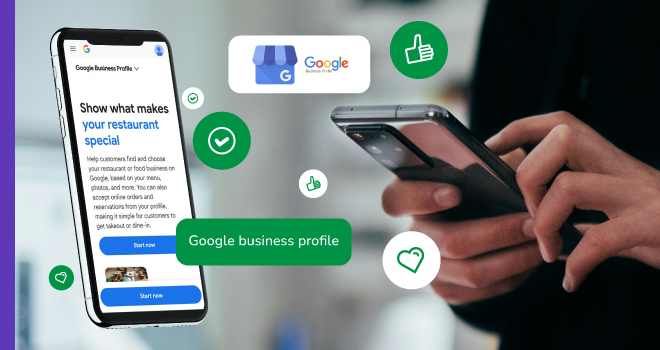
Most hospitality businesses already have a Google listing, but few are using it properly and as a result, you could be missing out on a steady stream of loyal customers. The good news is, making sure your Google Business Profile is working for you only takes a few minutes.
Whether you run a café, pub, restaurant, food truck, coffee van, market stall, or pop-up kitchen, your Google Business Profile is often the first thing potential customers see. That might be after a word-of-mouth recommendation, or when they search for “cafés near me,” “street food near me,” or “best coffee van today” on Google Search or Google Maps.
You probably already have a listing, but it may not be optimised, up to date, or even verified, which can mean missed customers, confusion, and poor visibility in local search.
Here’s how to check your profile and make sure it’s helping your business.
Step 1: Find Your Profile
Search for your business name on Google using your phone or computer.
- Fixed site: include your business name and town
- Mobile business: try your brand name + your usual trading area (e.g., “coffee van Shoreditch”)
Look for your business panel (right-hand side on desktop or top of mobile results).
Can’t see it?
- Go to google.com/business
- Search your business name
- Claim it if it exists, or create one (it’s free and takes about five minutes)
Mobile tip: If you trade in multiple locations, you may still have a single profile tied to a primary area rather than a fixed address.
Step 2: Check If You’re Verified
If your profile isn’t verified, you can’t control it, meaning no updates, no replies to reviews, and no accurate info.
To check:
- Log into your Google Business Profile
- Look for a “Verified” badge
If not verified, Google will guide you through it. This may involve:
- A postcard (for fixed sites)
- Phone/email verification (more common for mobile businesses)
Mobile tip: If you don’t have a permanent premises, you can set up a service area business instead of listing a public address.
Step 3: Review Your Opening Hours (or Operating Times)
Incorrect hours are one of the biggest frustrations for customers.
Check:
- Your daily opening hours are accurate
- Special hours (bank holidays, closures) are updated
For mobile businesses:
- Use your description or posts to clarify where and when you trade
- Example: “Serving at Brockley Market Saturdays 10am–2pm, weekdays rotating locations (see updates)”
If your schedule changes often, keep your profile updated with posts or edits at least weekly.
Step 4: Audit Your Photos
People choose where to eat with their eyes.
Check:
- Cover photo: bright, high-quality, inviting
- Food/drinks: recent and appetising
- Atmosphere: seating, setup, or service style
For fixed venues:
- Interior and exterior shots matter
For mobile businesses:
- Show your van, stall, or setup clearly
- Include photos of you in action (markets, events, street trading)
- Help customers recognise you when they find you
Add at least 10–15 strong images that reflect your current offering.
Step 5: Check Contact Details and Links
Make sure:
- Your phone number works
- Your website link is correct
Mobile-specific additions:
- Link to your Instagram (often your primary “live location” channel)
- Add ordering links (Deliveroo, Uber Eats, etc. if relevant)
- Include WhatsApp Business if you take direct enquiries
If you don’t have a website, Google lets you create a simple one for free.
Step 6: Add or Update Your Menu
Customers often check your menu before deciding to visit.
You can:
- Upload a PDF
- Link to your website
- Use Google’s built-in menu feature
For mobile businesses:
- Keep it simple and current
- Highlight your core items
- Update regularly if your menu rotates
Outdated menus damage trust quickly, especially if prices or items have changed.
Step 7: Fill in Missing Information
The more complete your profile, the better your visibility.
Make sure you’ve included:
- A clear description (e.g., “Independent street food trader serving wood-fired pizza across East London markets”)
- Correct business category (e.g., café, food truck, street food vendor)
- Attributes (e.g., takeaway, vegetarian options, dog-friendly)
- Services (dine-in, takeaway, delivery)
For mobile businesses:
- Use phrases like “mobile coffee van,” “street food trader,” or “pop-up kitchen”
- Define your service area instead of a fixed address
Step 8: Monitor and Respond to Reviews
Reviews are public and powerful.
Take a few minutes to:
- Read recent reviews
- Respond to customers (especially negative ones)
- Flag fake or inappropriate reviews
For mobile businesses:
- Reviews help build trust even without a permanent location
- A strong rating can be the deciding factor when someone spots your van or stall
Responding shows you care and helps boost your visibility.
Step 9: Check How You Appear in Search
Search like a customer would:
- Your business name
- Your category + location (e.g., “food truck London”)
- “Near me” searches
For mobile businesses:
- Try searches like “street food near me” or “coffee van today”
- See if your profile appears and how it compares
This gives you a real-world view of your visibility.
Why This Matters (For All Hospitality Businesses)
When people are deciding where to eat or drink, Google is often their first—and only—stop.
If your profile is incomplete or outdated, you’re effectively invisible.
But if it’s accurate, active, and engaging, it becomes one of your most powerful (and free) marketing tools.
For fixed venues, it helps you:
- Show up in “near me” searches
- Share key info instantly (hours, menu, location)
- Attract customers with photos and reviews
For mobile businesses, it helps you:
- Build credibility without a permanent location
- Tell customers where to find you
- Turn searches into real-world footfall
- Compete with established venues
Your 10-Minute Action Plan
- Search for your business on Google
- Log in and confirm you’re verified
- Check hours (or operating info) and contact details
- Update your photos and menu
- Fill in missing information
- Respond to recent reviews
- Do a quick search test
 Featured Training
OUR MEMBERSHIP
We're here to help make your catering business a success. Whether that be starting up or getting on top of your compliance and marketing. We're here to help you succeed.
Want our latest content?
Subscribe to our mailing list and get weekly insights, resources and articles for free
Get the emails